How to Link Any Podcast to a Yoto Card
Create your own podcast Yoto card by linking any podcast on the web to a MYO Yoto card.
Are you ready for some fresh Yoto content? For free?

I love making podcast cards for my kids. The great thing about podcasts is that the content is always changing. The bad thing about podcasts, the content is always changing. One reason we have a yoto is to be able to filter the media that reaches our children's ears and eyes. Finding podcasts I can trust is SUPER important, which is why I have chosen to link trusted sources that have great stories and build Biblical literacy.
Intested in doing this too?
You're in the right place. Let me show you how.
Link Any Podcast to a Yoto Card
While Yoto has a selection of podcasts in their app, there is a whole wide web of great podcasts that are available for our listening pleasure. Many, that most of us have not even discovered.
In an attempt to be gatekeepers of the content that enters our homes and our hearts, it is my desire as a mom to put podcasts in front of my kids that I know and trust. With that in mind, I set out to both find good content and learn how to link it to our MYO Yoto cards. Having podcast cards in our Yoto card library allows for changing and fresh content without continue effort from me. It's like having a fresh card each time a new episode drops.
To link a podcast to a Yoto card you will need one important piece of information: the RSS link.
You're also going to want some MakeYour Own Yoto cards. Keep in mind that MYO cards can be linked as many times as you want, so you can change which podcast they play anytime.
Where to find the RSS link
Often times you can find an RSS link on a podcast's website. It will look similar to a website address (URL) with a series of letters and special characters. It may contain words like RSS "feed" or "link".
I have included a list of RSS links to our favorite and my recommended podcasts at the end of this post, but if you can't find the one you are looking for you can find a podcast RSS feed using a third party site such as Castos or Get RSS Feed. Sometimes a good Google search can prove fruitful too. Try searching the podcast name plus RSS feed.
Castos
Castos is a free RSS finder site that allows you to search by typing in the name of your podcast. Hit the search icon and it will show you a list of matches. Once you find your podcast on the list, click the icon on the right side (looks like two black stacked rectangles) to copy the RSS.

Get RSS Feed
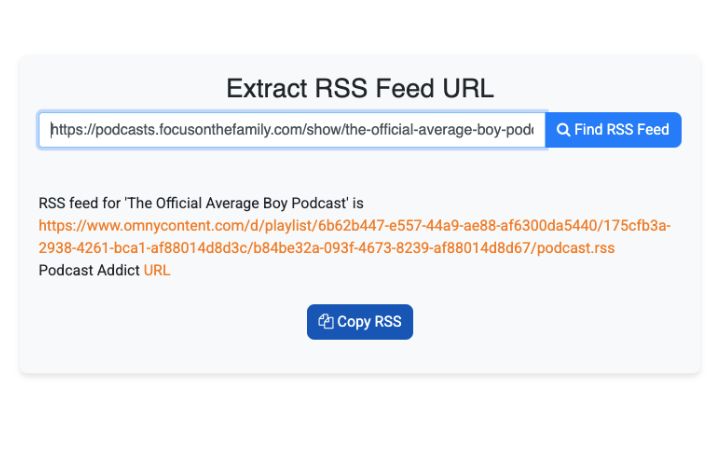
Get RSS Feed allows you to copy the website URL from your favorite podcast apps such as Apply Podcasts, Spotify, SoundCloud or other websites. Insert the web address of the podcast you want to find the RSS feed for and click "Find RSS Feed" and the copy the results.
Paid Podcasts
If you are having a hard time finding a specific podcast, especially on certain platforms like Spotify, it may be hidden behind a paywall. These podcasts have different access options because of the subscription cost to access their content, and cannot be linked to a Yoto card.
Adding the RSS Feed in the Yoto App
Once you have the RSS feed for your podcast. It's a simple process, but slightly different than a normal MYO card.
First, you need to find the podcast tab in the app. Open up the Yoto app and navigate to "podcast" . You may have to scroll (swipe) to the side to see all the options in the menu. At the time of writing this post, the podcast tab is bright blue.
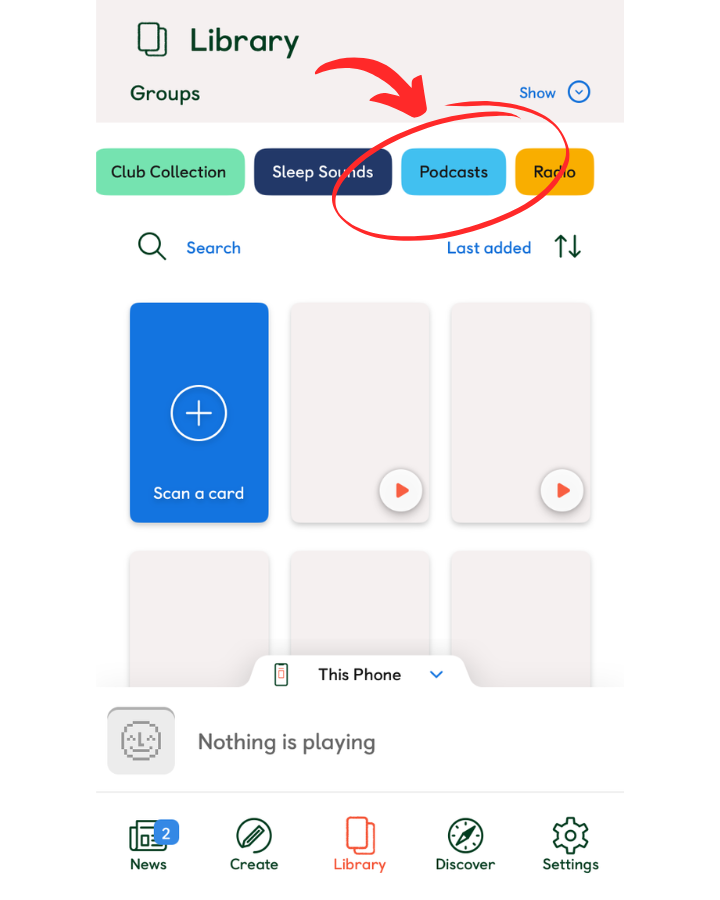
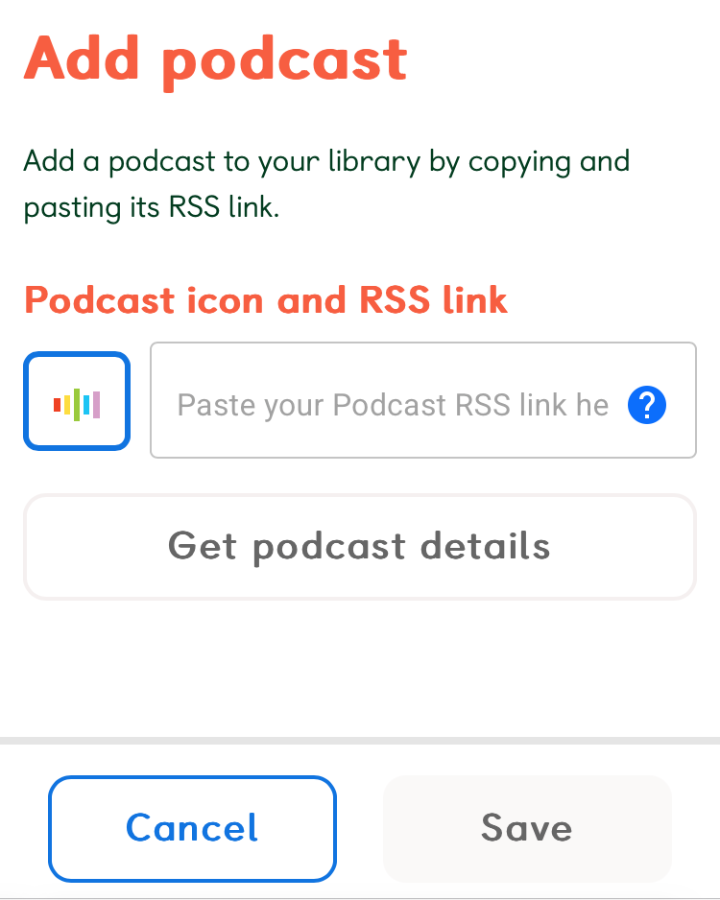
From there, chose the "add a podcast" button. This will direct you to the Yoto website "Add Podcast" page. Insert the copied RSS feed code into the box and click "Get Podcast Details". The podcast should pop up. Then select "save" to add it to your podcast menu on the app.
Linking the MYO Yoto card to a Podcast
Once you have added a podcast to the app, you can find your podcasts under the podcast tab/menu in the Yoto app. (Follow the same process to find it as you did above.)
- Once you find the podcast you want to link, select it.
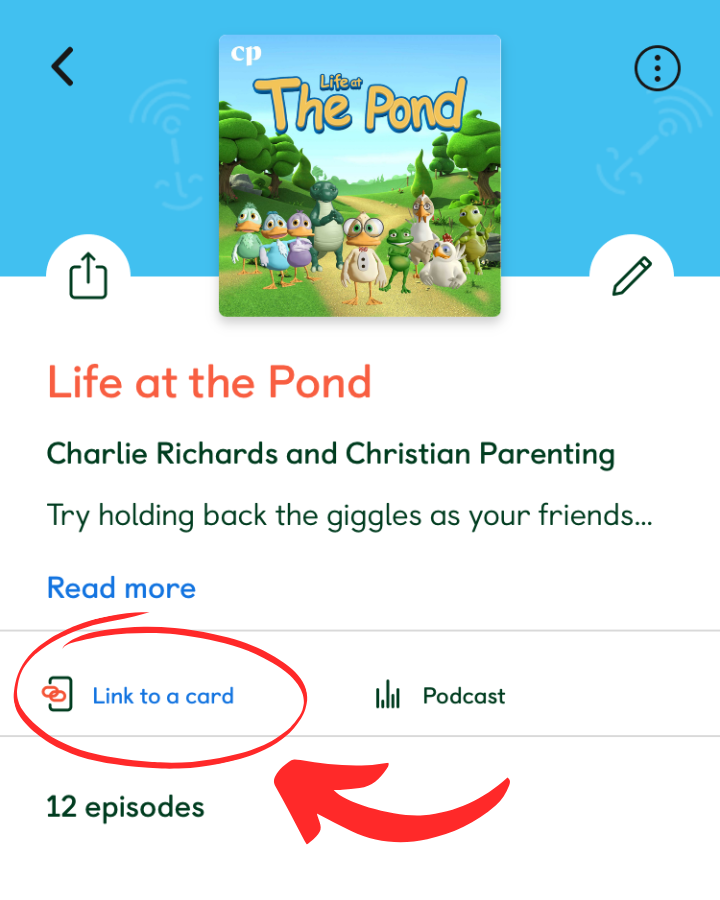
- Under the podcast description you will find a "link to card" icon (you may need to scroll down the page depending on how long the description is).
- Follow the prompts to link to a MYO card using either your phone or Yoto player.
That's it! You did it!
Using A Podcast Card with WIFI
Now you can use your MYO podcast card just like any other card. Use the right button on your player to select past episodes just like you select tracks on a typical card.
Keep in mind, that using a podcast card will require internet connectivity. The Yoto does not download the content to it's internal memory like it does with other cards, so without internet the MYO podcast card will not work.
MYO Podcast Card Labels
If you're loving a podcast, and think you may want to make it a more "permanent" part of your Yoto card collection, then head on over to my post on making custom professional looking Yoto card labels. I'll show you how to print and apply great looking, long lasting labels to your MYO cards. Find the post HERE.
Linking Yoto App Podcasts
Yoto has a large offering of podcasts available through their app. These podcasts are free and can be linked to a MYO Yoto card super easily with just a couple clicks. I personally have not listened to any of the offical Yoto podcasts, besides Yoto daily, and cannot speak to their content.
Option One
- Open the Yoto app and tap the "library: icon at the bottom of the screen.
- Slide the menu icons ("my cards","playlists","club collections", etc) to the left to find to the "podcast" (bright blue) option and select it.
- Scroll to the bottom and click the "browse podcasts" button
- Select the podcast you wish to link.
- Under the podcast description select "link to a card" and follow the prompts.
Option Two
- Open the Yoto app and tap the "discover" icon at the bottom of the screen.
- From the top menu icons choose "podcasts for kids" (bright blue) option.
- Select the podcast you wish to link.
- Under the podcast description select "link to a card" and follow the prompts.
Podcast RSS Feed List
I have complied a list of my favorite and trustworthy podcasts below. Simply copy and paste the text of the RSS that you desire to use (you do not need to follow the link).
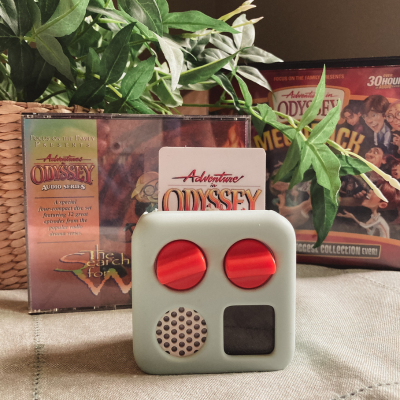
Adventures in Odyssey Radio Episodes
The Official Adventures in Odyssey Podcast
The Official Average Boy Podcast
The Biggest Story
Countdown to Christmas with Zach - An Advent Podcast for Kids
Indescribable Kids
Keys for Kids Podcast
Keys for Kids Ministries - Retro (Formerly Children's Bible Hour)
Life at the Pond
Link not working? Try copying the RSS feed link from THIS WEBSITE.
Tiny Theologians
Unlocked - Daily Devotionals for Teens




Thank you so much for sharing this information, it has been very helpful!
I’m having trouble linking Adventures in Odyssey Radio Show and Life at the Pond and am wondering if you could check the links for me? I haven’t figured out how to find them myself!
Thank you for bringing this to my attention. I also had difficulty with the link today. I believe I have updated them to work, and provided alternate sources if needed. Copy and paste the text as shown, or click copy RSS after following the alternate link provided. Hope that helps!