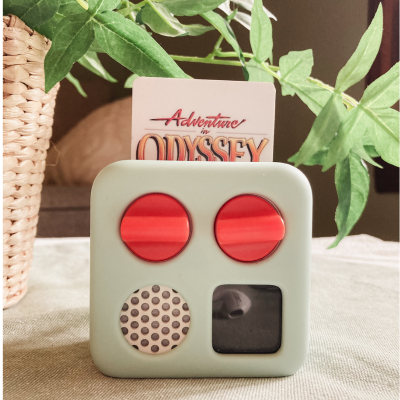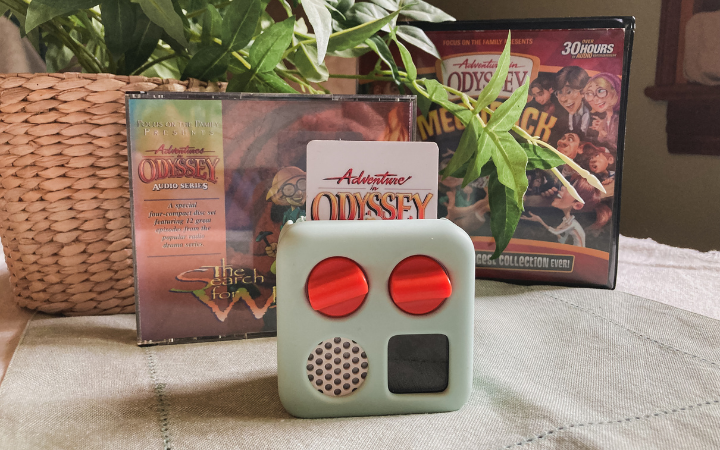
Make A Yoto Card From A CD
This post will show you how to upload your own CD’s and add them to a Make Your Own (MYO) Yoto card.
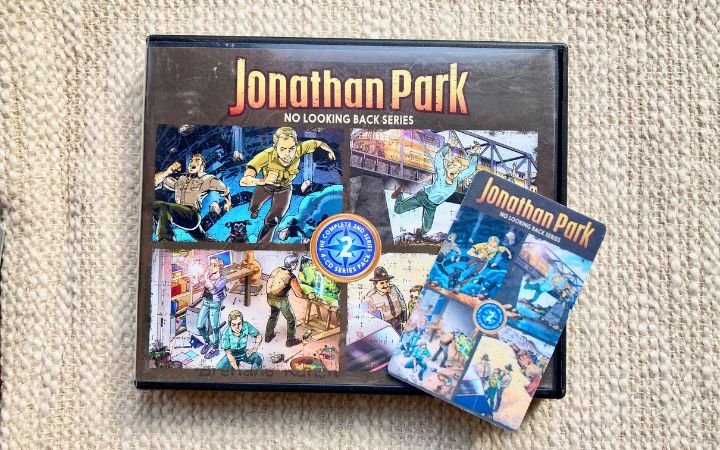
Our family is “old school” when it comes to our technology usage. You won’t find a lot of streaming in our home, although we do use it. You will, whoever, find “hard copy” analog items to be common place. There are several reasons for this:
Internet Access and Cost:
When the kids were little we didn’t pay for internet access. We didn’t have extra money to be spending on things we didn’t NEED, and the internet through our smartphone was sufficient for most things we needed to do at home.
Content Control:
Anybody who wasn’t born this decade knows that the internet is a place filled with all varieties of nefarious characters and questionable content. We knew that the easiest way to have peace of mind on what was coming into our children’s ears was to avoid connecting to it altogether. We inherited a large selection of CD’s from my parents. I also picked up others very cheap at garage sales and second hand stores. We purchased a boom box with a CD player (and a cassette tape deck), and haven’t looked back. The one issue we did come across with radio’s was that radio stations and modes can easily be changed by curious fingers.
Battery Life:
When our youngest were toddlers, we did use my iPod from high school to play select music and tracks at bedtime. Too often I had forgotten to charge it and the battery was dead when we needed it the most. It didn’t take long before I decided something that could plug in to a power source was going to suit our lifestyle best. (At one point we had two bio kids and two foster kids under 4, and I was pregnant. I didn’t have time or patience to deal with dead batteries when the kids were going down for sleep.)
Transitioning from the CD Age to YOTO
As our kids got older, and our family became more established, we eventually began moving to some digital options. We began streaming Keys for Kids and Adventures in Odyssey from our iPad or iPhones.
We also purchased two YOTO players.
The YOTO player allowed us to have more portable (and scratch resistant) content available for the kids and I could load audiobooks, etc from the app on my phone. The YOTO players also gave us the option of turning our CD’s into MYO cards and playlists. How we do that is what I am going to share with you today.
Sourcing Cheap CD’s
Maybe you have come across a windfall of old CD’s recently, but if not here are a few ideas of places to look.
In the Basement: You know they’re still down there. Somewhere in a box you have some great old jams that you could turn into a playlist for your kiddos. Some of the old tracks I’ve put onto music playlist cards have become my children’s favorite.
iTunes: Remember back before Spotify and Pandora? If you had/have an iTunes account, the songs you purchased are still there and you can easily download them again. (It’s like skipping the first step 🙂 )
Rummage Sales: Garage Sales and auctions are great places to look for CD’s that will likely cost you $1.
Secondhand Stores & Sites: Check local thrift and donation stores, or do a quick search on eBay or Poshmark for audio books or old titles you may have enjoyed as a kid.
Library Sales: Many libraries do sales annually. This is a great place to pick up disks of audiobooks or radio shows.
Downloading the Audio to Your Computer
The first thing you will need to do is transfer the audio files from the CD to a computer.
If you own a computer that has a CD disk drive, you can insert the CD directly. (Way to rock the old tech!!)
Since most computers no longer have disk drives, you will likely need to purchase an external USB supported CD drive such as THIS ONE.
Plug the external drive into a USB port, then unsert the CD into the disk drive.
Legal Consideration: If you own a CD you have purchased the rights to (you “own”) those files. As long as you own the CD it is legal for you to make copies of the files for use within your household on other devices such as a personal computer, iPod (back in the day), Yoto, etc. If you are borrowing the CD from a library, or later get rid of the CD, legally you don’t own those files. (*I am not a lawyer. This is not legal advice but my best understanding of copyright laws under “fair use”. You are responsible to do your own research on copyright material usage and laws are subject to change.)
Upload the Audio Files
I will be using a MacBook for this tutorial. Exact steps will differ depending on your computer age and operating system.
If you already know how to upload (“rip”) the files from your disk to the computer go ahead and do that.
When you insert the CD in to the disk drive your computer may automatically open the CD files in a music program such as iTunes. You can download them from there, just be sure you know what folder the raw data files are going into.
If your computer doesn’t automatically start a program, search on your desktop for a CD drive icon, or look under your “my computer” (Windows) or “finder” (Mac) menus for the CD drive to appear.
Link to A MYO YOTO Card
Once you have all the files on your computer you can create a YOTO playlist and/or link them to a MYO card.
I have an entire post about how to make your own YOTO MYO card playlists using a computer.
Finish off the project with durable and professional looking labels.